
To use Grok Bot on macOS or Windows, install the desktop app, then open the shared bot link. Without the app, the link shows a download prompt. Some shared templates first open a web preview. The directory explains the app-opening behavior, while official documentation describes the template preview.
Grok Bot runs as a desktop app on macOS and Windows
You need the Grok Bot desktop app to complete the shared-template process on macOS or Windows. The official product page names both platforms, and the getting-started guide directs users to download the app from that page and open it.
The app is the software you install. A shared bot link opens or adds a shared bot; it does not replace installation. If Grok Bot is not installed on the computer you intend to use, start at the official download page.
The supplied sources do not establish exact operating-system versions, hardware requirements, or account requirements. Check current official guidance to confirm whether your computer qualifies.
The instructions below cover the shared-link path. They do not describe specific browser dialogs or installation screens for either platform.
Open a shared Grok Bot link in the desktop app
The directory's opening instructions say a share link opens the desktop app. The official template documentation adds that a recipient first opens a preview on x.ai and needs the app to finish adding the template.
Use this sequence:
- Find the original shared Grok Bot link.
- Open it on the computer where Grok Bot is installed.
- If a template preview appears, review it and use the available option to continue adding it to Grok Bot.
- Continue in the desktop app.
The official documentation uses different button labels when discussing adding and importing bots. Look for the action that takes the shared template into the installed app rather than relying on an exact label.
According to the official documentation, adding a shared template creates a copy on the recipient's account. It does not give the recipient the sender's computer, logins, or conversation history. That statement applies to shared templates, not every form of collaboration described on the page.
Why does the link show a download prompt?
The link shows a download prompt when Grok Bot is not installed, according to the directory's shared-link explanation. The prompt alone does not indicate a broken link.
The directory's simplified flow is:
Grok Bot installed → shared link opens the app
Grok Bot not installed → shared link shows a download prompt
For shared templates, the official documentation describes a browser preview before you finish adding the template in the app.
Use the page you see to choose your next step:
- A template preview: review the template and continue toward adding it in Grok Bot.
- A download prompt, with no app installed: obtain the desktop app before trying to finish.
- The desktop app: continue there.
If the app is already installed but the link still shows a download prompt, the supplied evidence does not explain the cause. Consult current official guidance rather than assuming a browser setting or permission is responsible.
Install the app, then reopen the shared link
The official getting-started guide identifies x.ai/bot as the download destination and tells users to open the app.
If Grok Bot is not installed:
- Keep the original shared link available.
- Go to the official Grok Bot product page.
- Obtain the desktop app for your operating system.
- Complete installation and open Grok Bot.
- Return to the original shared link and open it again.
These are high-level steps. The supplied evidence does not establish exact filenames, installer controls, or operating-system prompts. Follow the current official instructions for those details.
Return to the original link to open the bot you intended to use. If it brings up a template preview, continue from there. The official template guide says the app is needed to finish adding the template; it does not say every link must bypass the browser.
Choose a bot that matches your task
Match the directory description to the work you want to do. The listings below are possible starting points, not verified performance results.
Grok Bots Market is an independent community directory. It is not affiliated with xAI or SpaceXSI. Use its listings to understand the described task, and use official documentation for app setup and shared-template behavior.
Shelf: household books and their locations
The supplied directory listing describes Shelf as cataloging household books and telling you where they are. Consider it for organizing a home book collection.
 ShelfCatalogs every book in your house and tells you where it is
Its web page could not be verified during the supplied research. The supplied listing description does not establish how books are entered or how locations are recorded. Check those details before choosing it.
Diagram Designer: systems and flows
The Diagram Designer listing describes a bot that draws diagrams of systems, flows, and bot fleets. Consider it when you need to express a process or a relationship between parts.
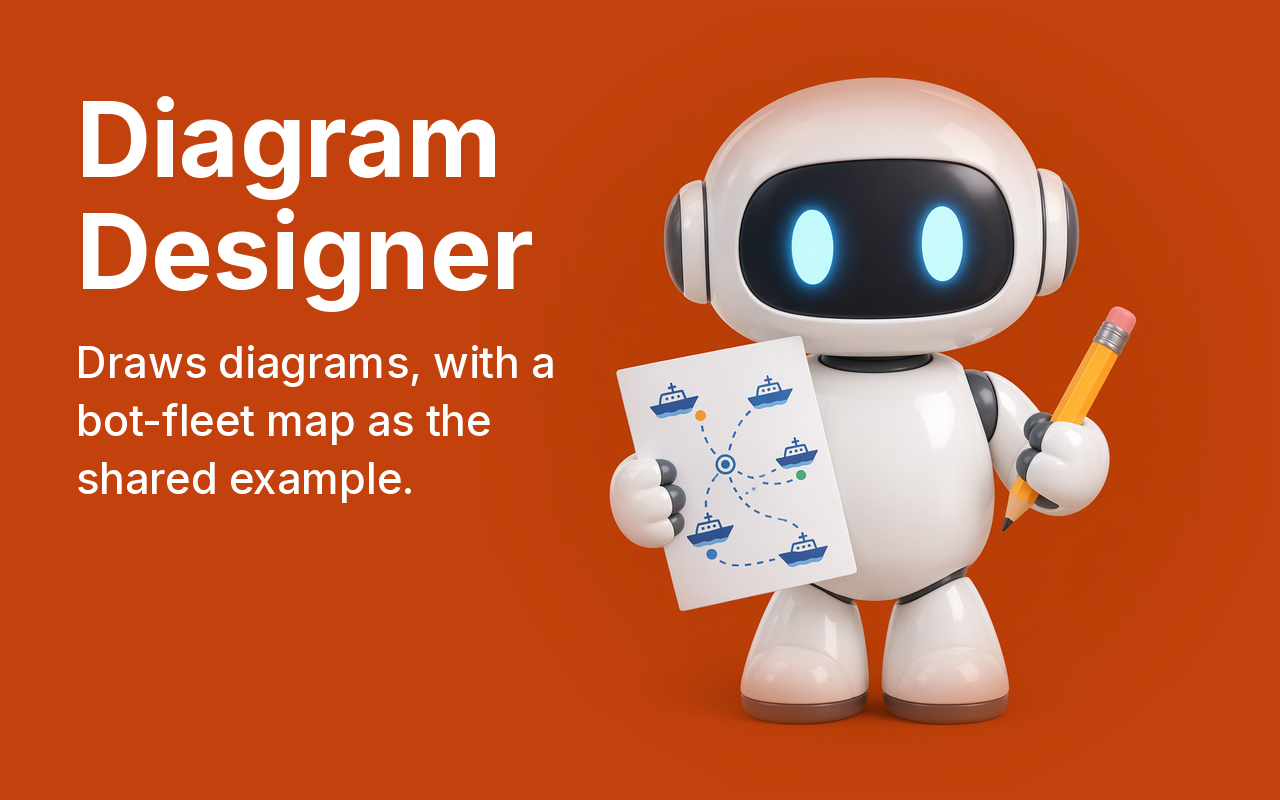 Diagram DesignerDraws clean diagrams of your systems, flows and bot fleets
Before opening it, write down what the diagram should explain, from its starting point to its intended end state. This is preparation advice, not a claim about the bot's input controls. The listing does not establish particular output formats or editing features.
Creator Post Helper: a post draft
The Creator Post Helper listing describes a bot that drafts a post in your own voice. Consider it for help producing a post draft.
 Creator Post HelperDrafts today's post in your own voice
Decide what the post should say before opening the bot, then review any draft against that goal. The directory description does not establish automatic publishing, social-account connections, or verified voice-matching quality.